ChartBridge Notifications and Alerts
Manage your notification channels and alert preferences in the ChartBridge Notification page.
ChartBridge can deliver instant alerts for trade executions and terminal connection events directly to your Email and Telegram.
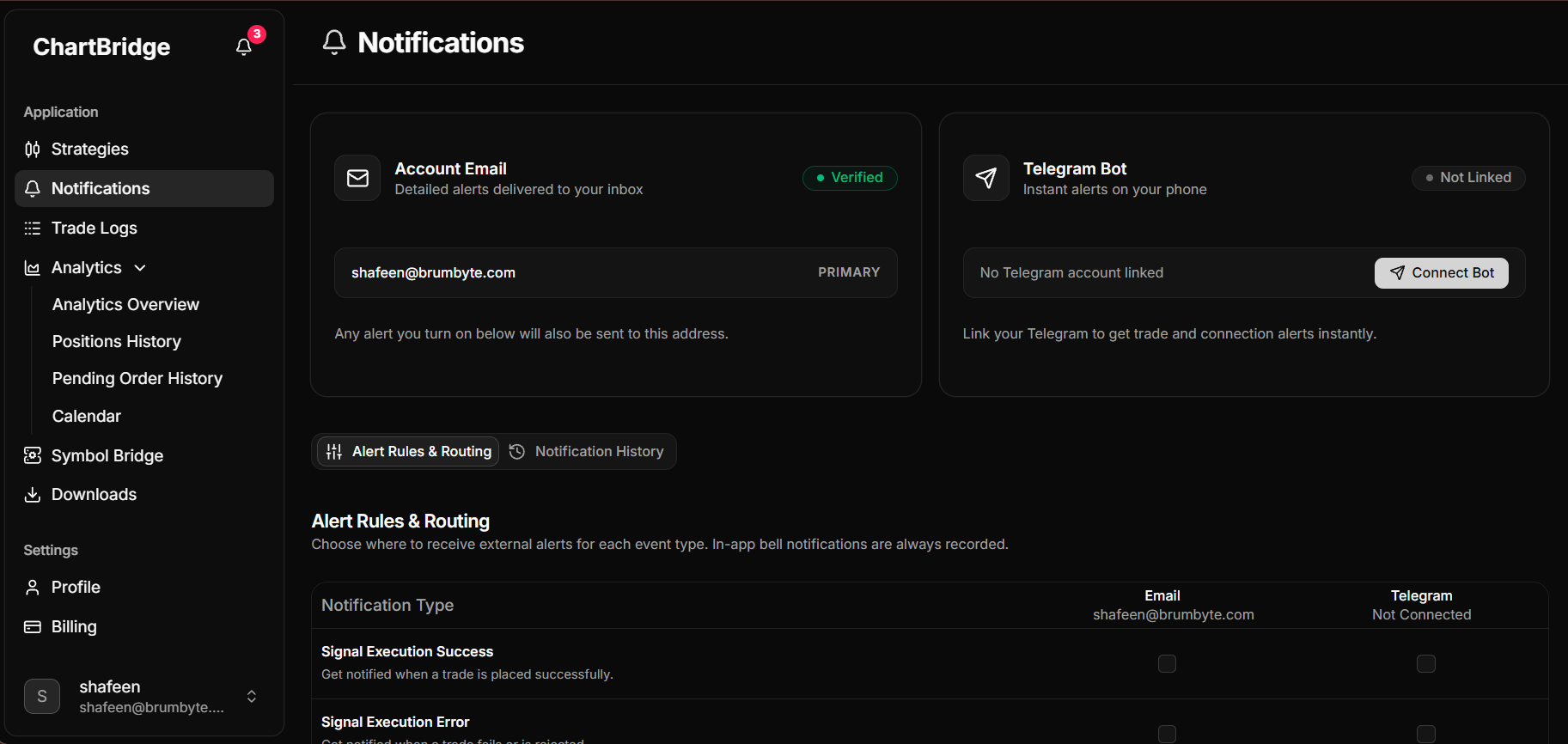
Notification Channels
The top section of the page displays your available notification channels:
Account Email Displays your primary verified email address. Any alert event enabled for Email in the rules table below is automatically delivered to this address.
Telegram Bot Delivers instant alerts to your phone or desktop via the ChartBridge Telegram bot.
- Status displays Not Linked when no bot is connected.
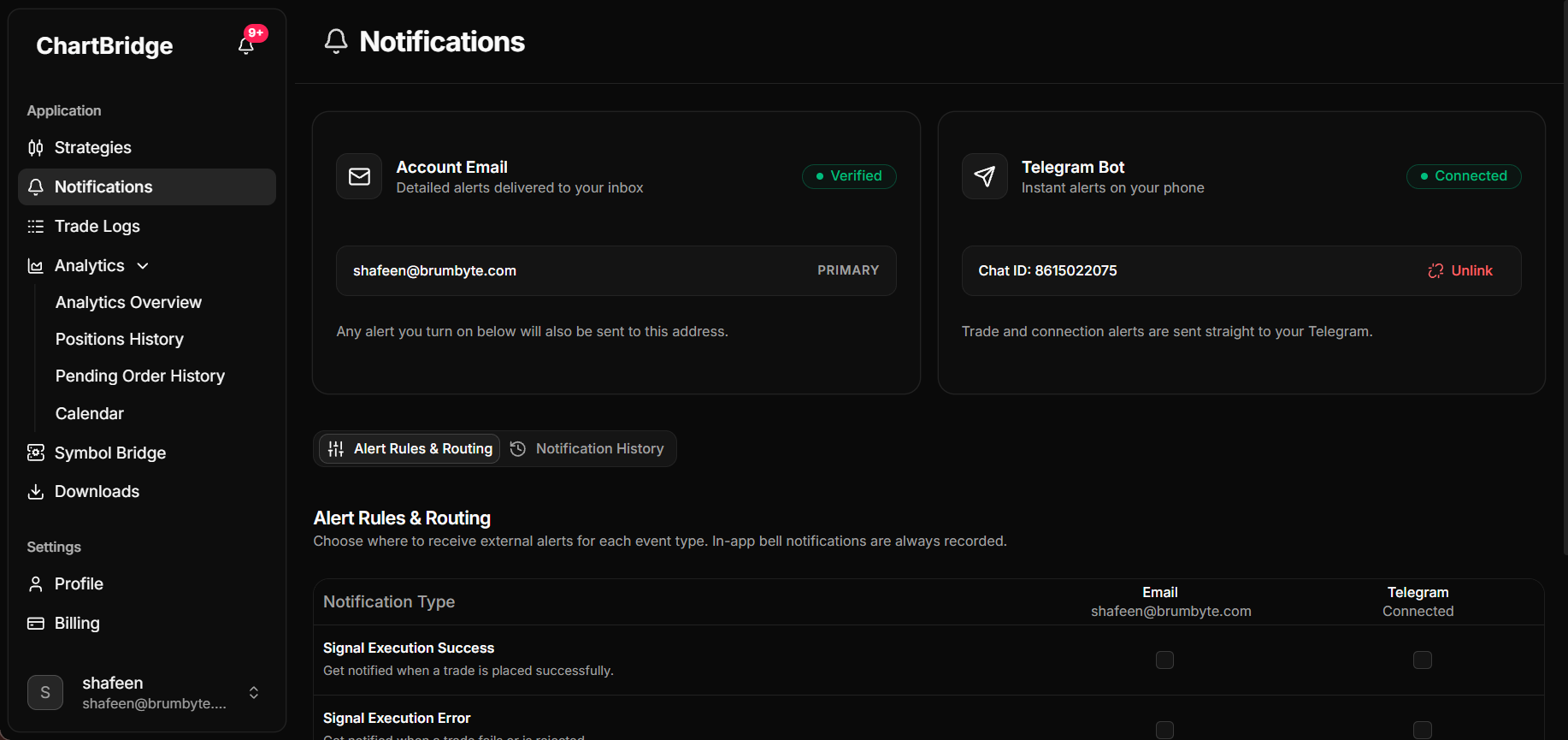
- Status displays Connected along with your Telegram username or Chat ID once linked.
How to connect Telegram
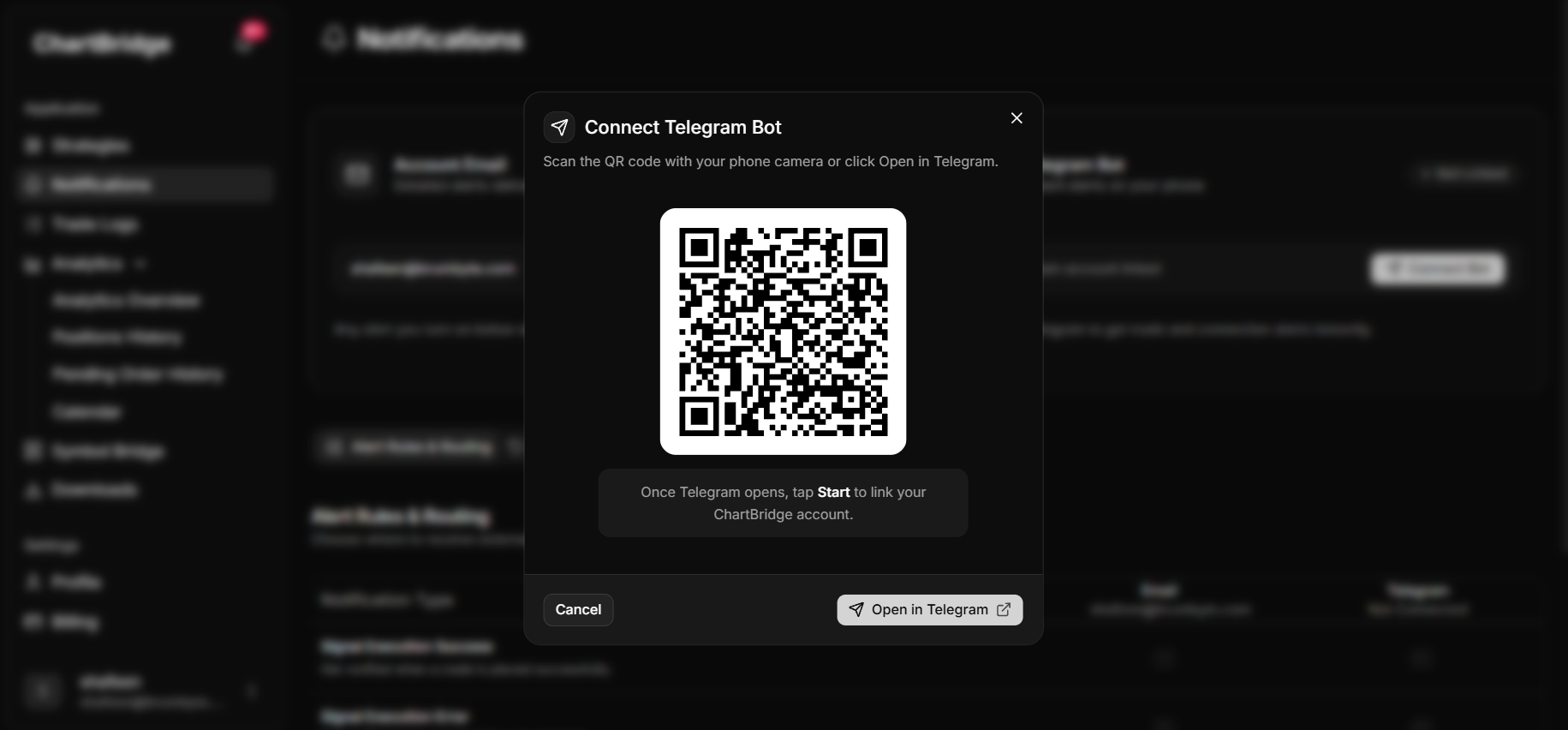
- On the Telegram Bot card, click the Connect Bot button.
- In the dialog that appears:
- If using a computer, scan the QR code with your mobile camera or click Open in Telegram.
- If using your phone, tap Open in Telegram.
- Once Telegram opens, tap Start.
- The dialog closes automatically, and the card updates to Connected.
Alert Rules & Routing
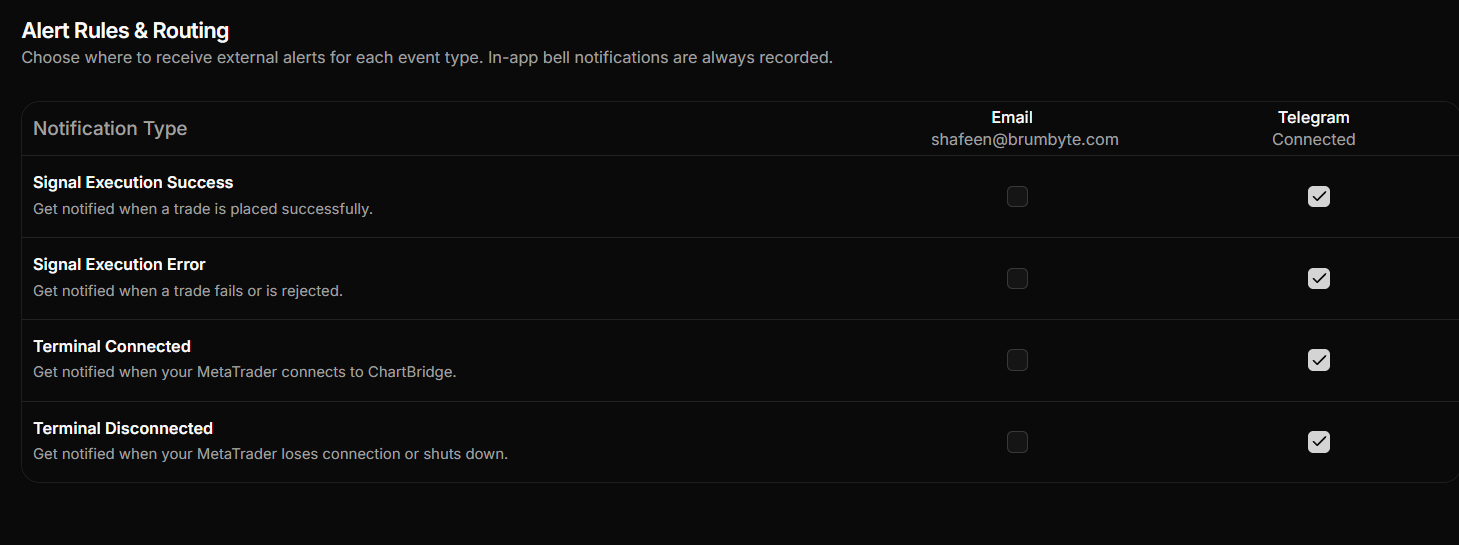
Below the channel cards, the Alert Rules & Routing tab lets you choose which events send notifications and where they are delivered.
Use the checkboxes in the table to turn Email or Telegram alerts on or off for each event:
| Notification Type | Description |
|---|---|
| Signal Execution Success | Sent immediately when a trade is placed successfully on MetaTrader 5. |
| Signal Execution Error | Sent when an incoming alert fails to execute or is rejected by your broker. |
| Terminal Connected | Sent when your MetaTrader 5 terminal connects to ChartBridge and goes online. |
| Terminal Disconnected | Sent when your MetaTrader 5 terminal loses connection or shuts down. |
Notification History
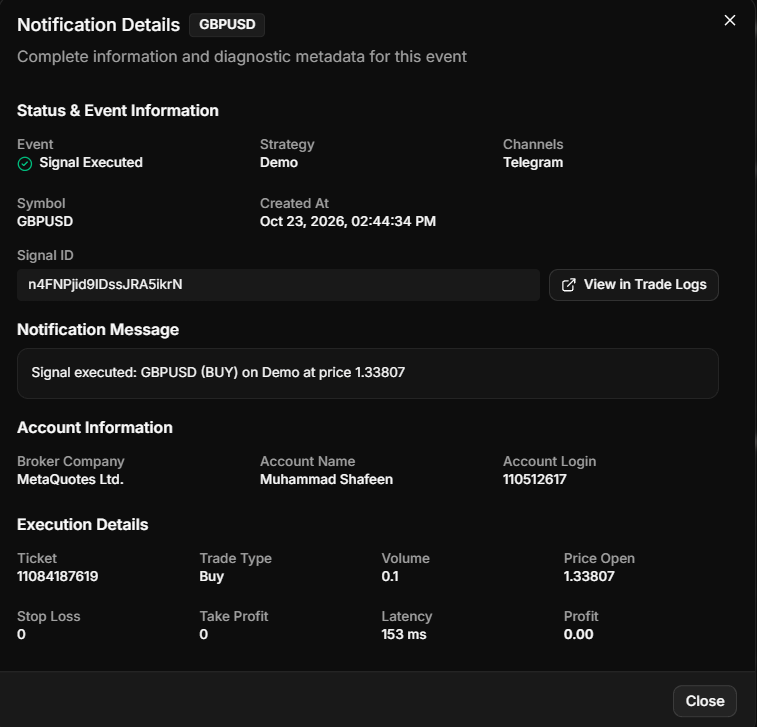
Click the Notification History tab to view a log of all notifications previously dispatched to your account.
The history table displays:
- Event: The type of notification (Signal Executed, Signal Failed, Terminal Connected, Terminal Disconnected).
- Symbol: The traded instrument (for example, EURUSD).
- Details: A summary of the event.
- Created At: The exact date and time the notification was sent.
Using Filters in History:
- Type filter: Filter events by All, Signal Executed , Signal Failed , Terminal Connected, or Terminal Disconnected.
- Search bar: Search entries by symbol name or keyword.
- Refresh: Reload the table to view the newest dispatched events.
Disconnecting Telegram
To stop receiving alerts on Telegram:
- Locate the Telegram Bot card at the top of the Notifications page.
- Click the Unlink button.
- In the confirmation dialog, click Disconnect.
Your Telegram account is unlinked immediately. You can reconnect it at any time by clicking Connect Bot.