ChartBridge Telegram Notifications
Connect your Telegram account to receive real-time trade alerts and terminal connection updates directly on your phone or desktop.
How to connect Telegram
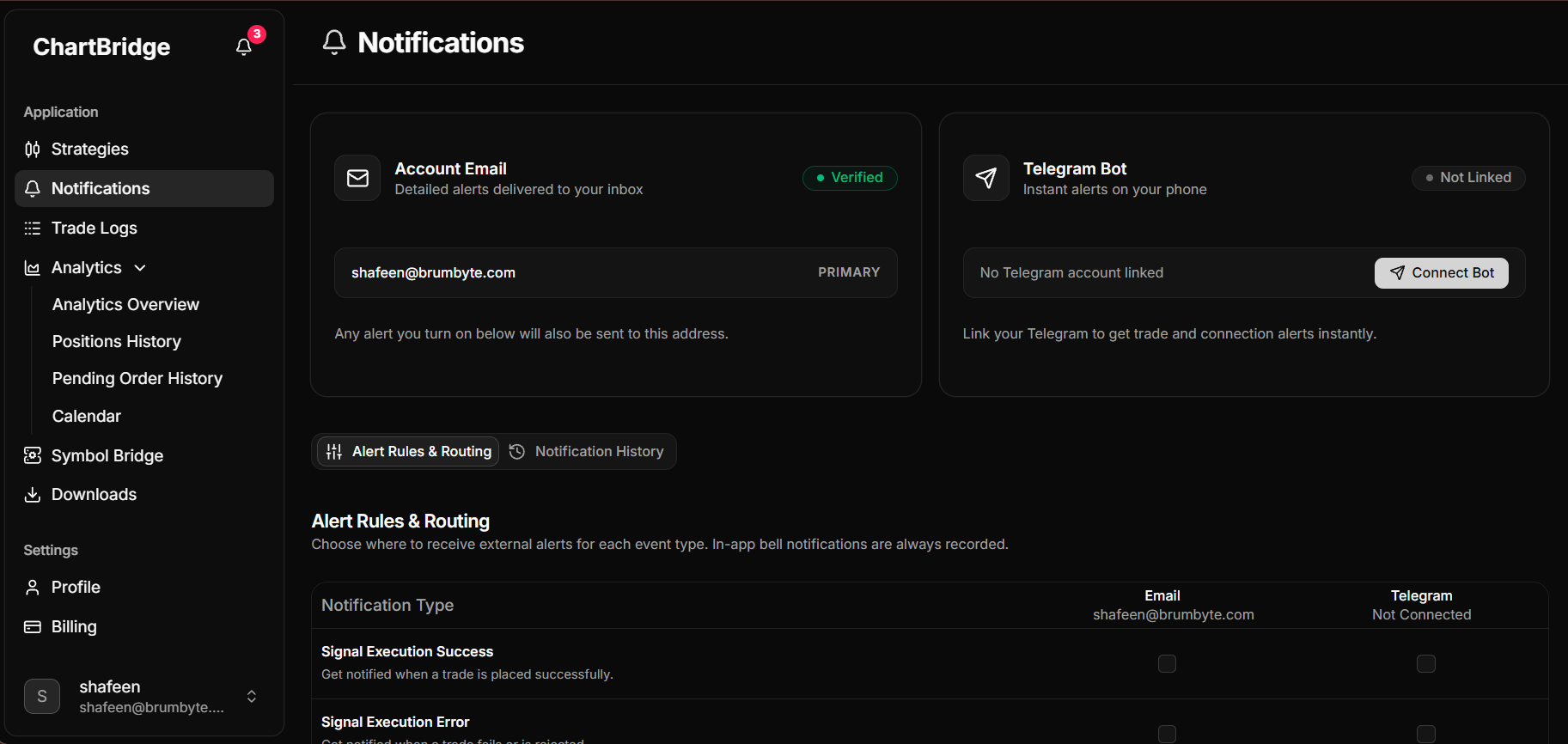
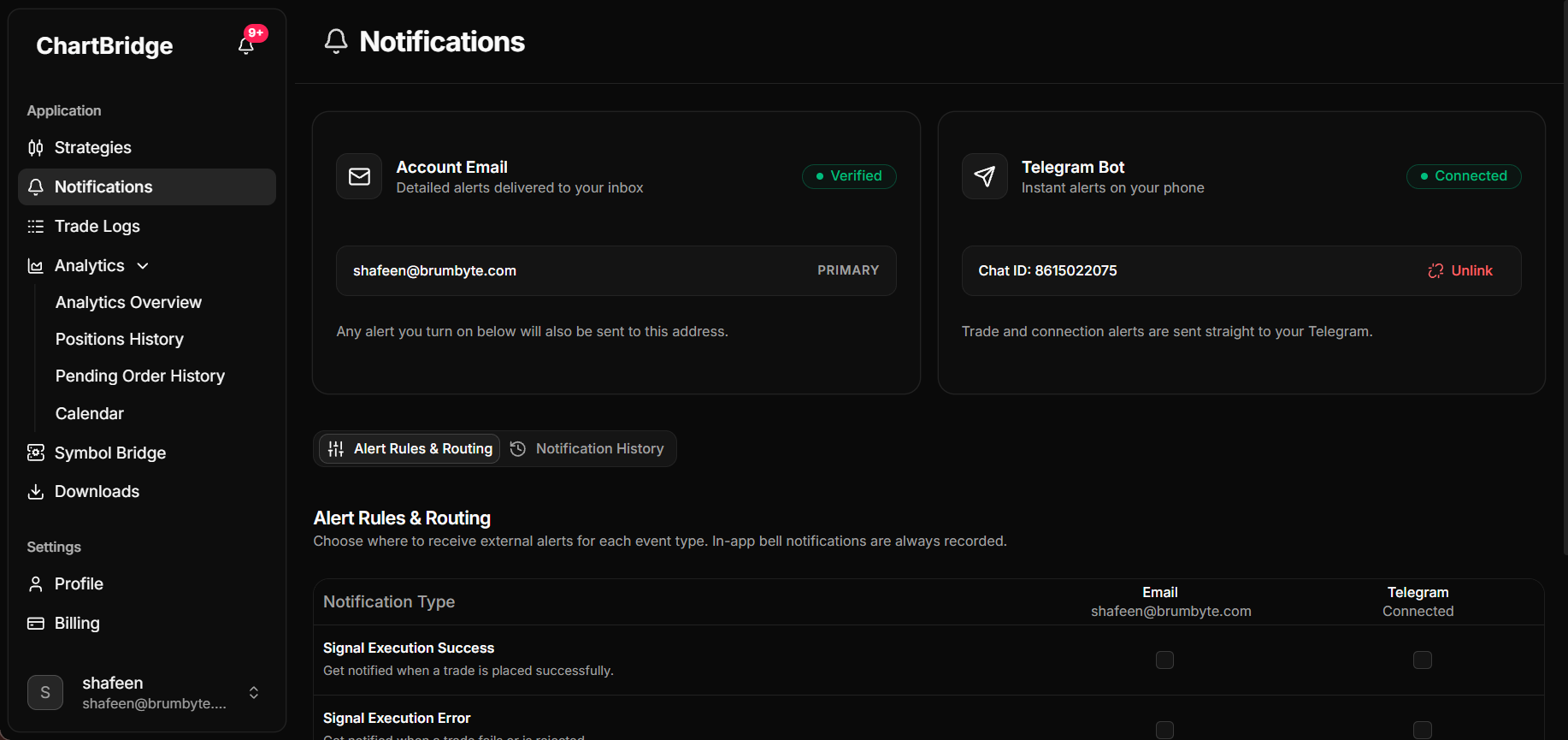
- Go to Notifications in the portal (https://staging.chartbridge.com/home/notifications).
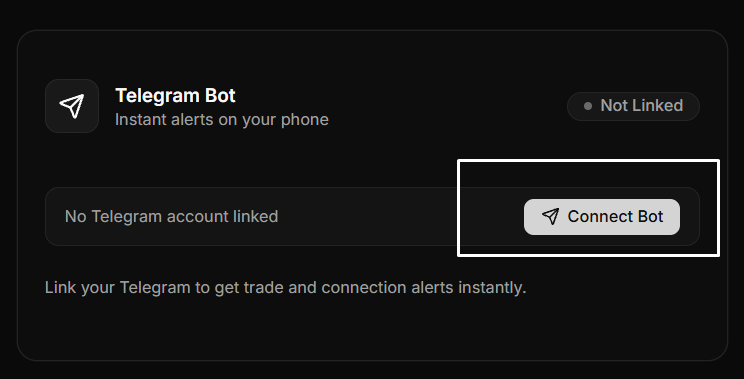
- On the Telegram Bot card, click Connect Bot.
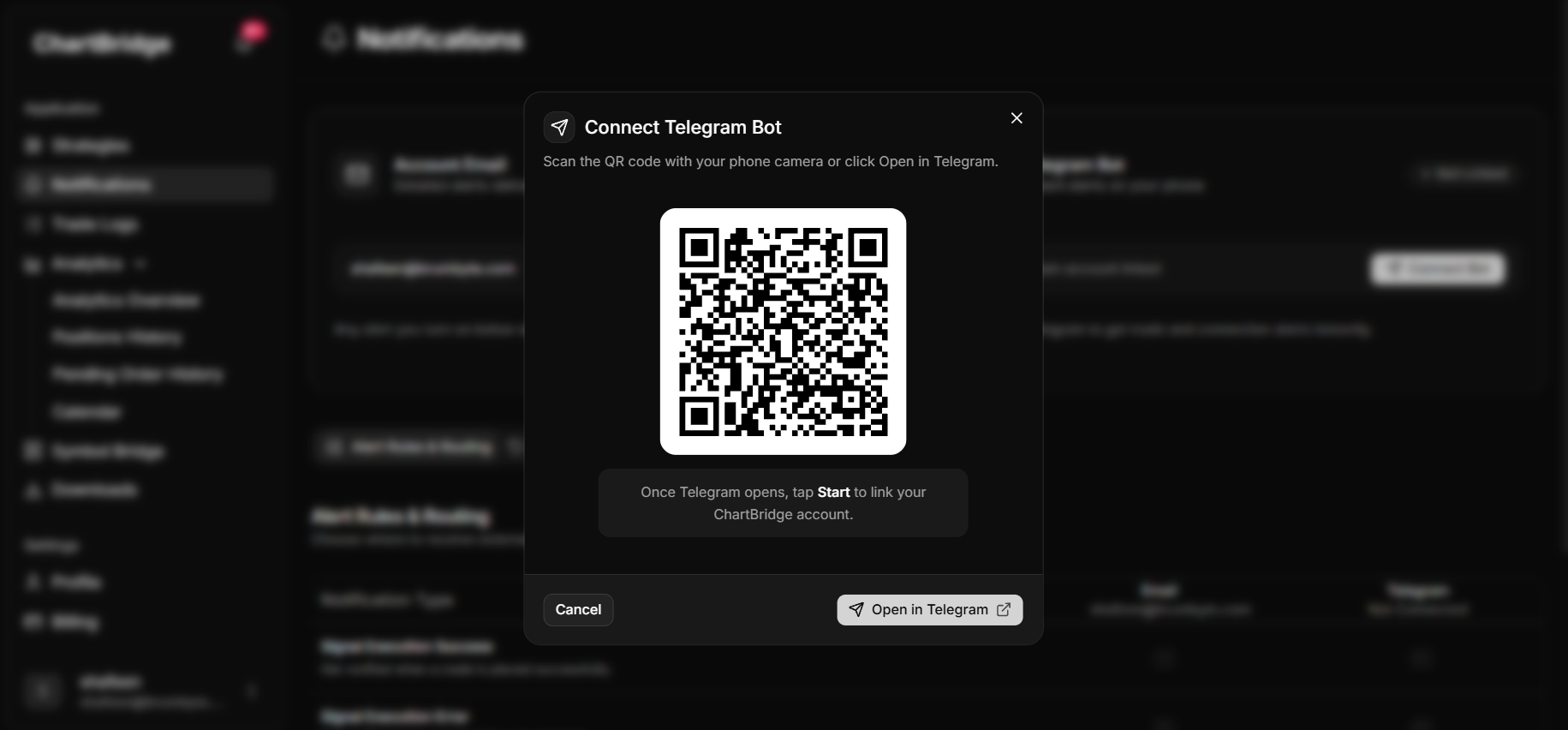
- A dialog appears with a QR code and an Open in Telegram button:
- If you are on a computer, scan the QR code with your phone camera or click Open in Telegram.
- If you are on your phone, tap Open in Telegram.
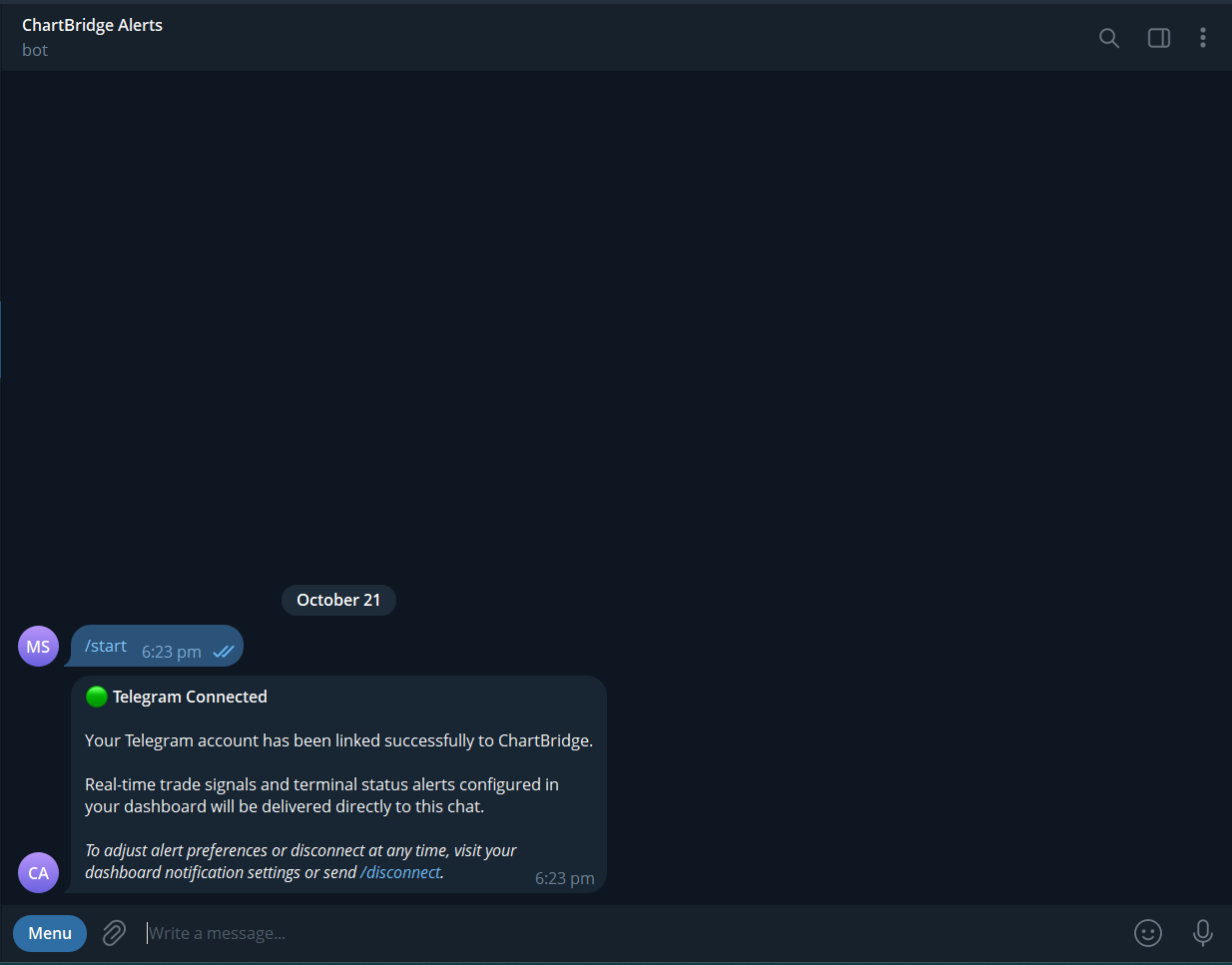
- When Telegram opens, tap Start.
- You are now connected. The bot sends a confirmation message in your chat, and your dashboard updates to show Connected.
Choose what notifications to allow
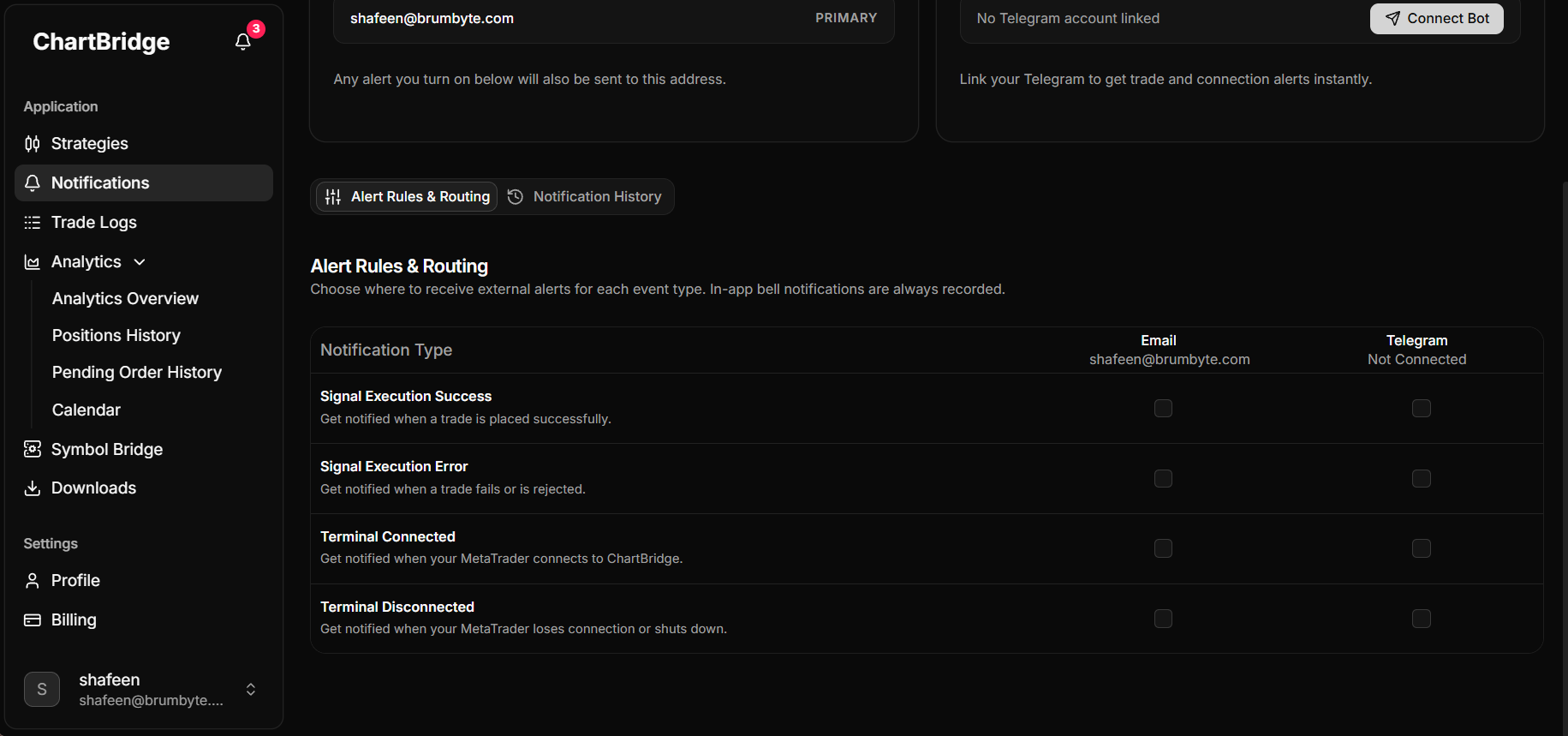
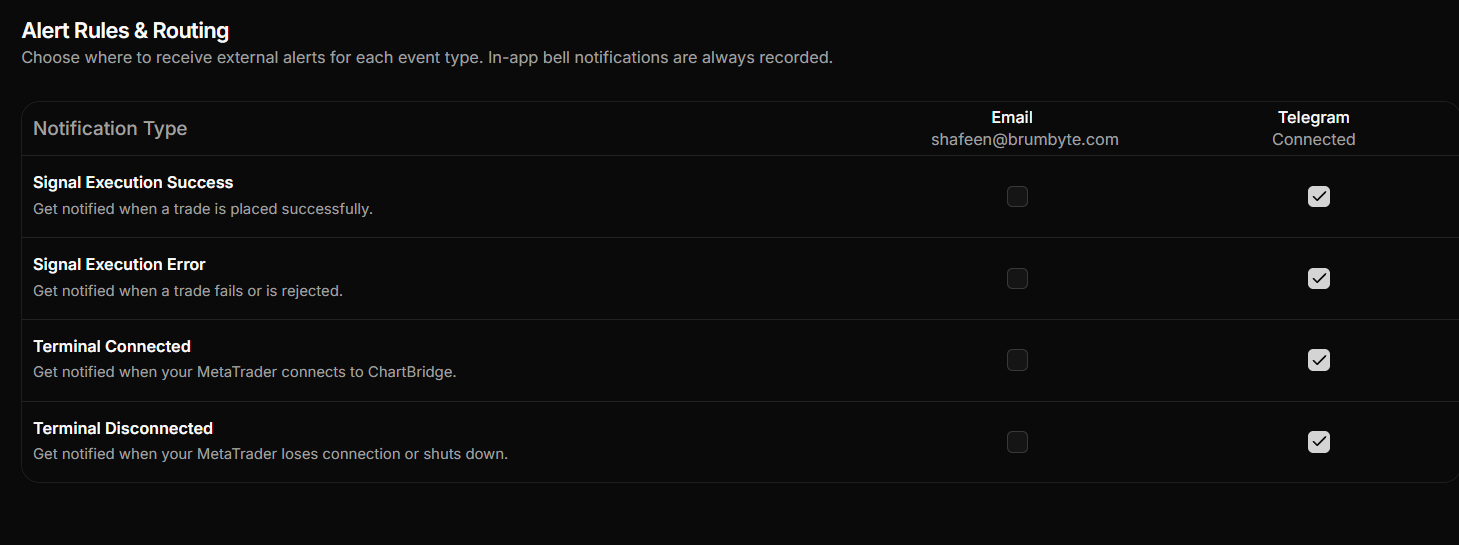
Below the connection cards, use the Notification Rules table to choose which alerts are sent to your Telegram. Simply check or uncheck the Telegram box for each event:
Signal Execution Success
Get notified when a trade is placed successfully on MetaTrader 5.
Signal Execution Error
Get notified when a trade fails or is rejected by your broker.
Terminal Connected
Get notified when your MetaTrader 5 terminal connects to ChartBridge and goes online.
Terminal Disconnected
Get notified when your MetaTrader 5 terminal loses connection or shuts down.
How alerts look in Telegram
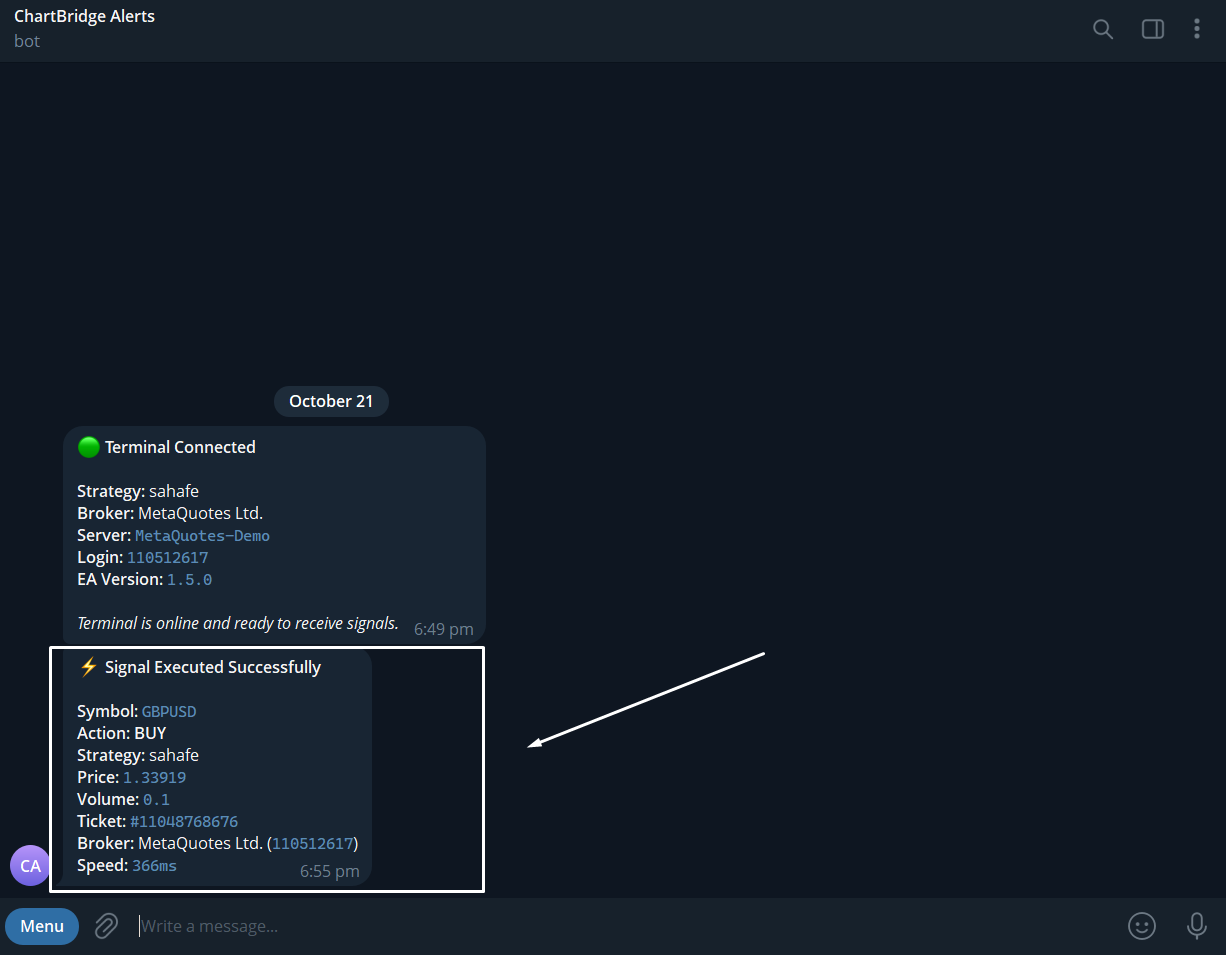
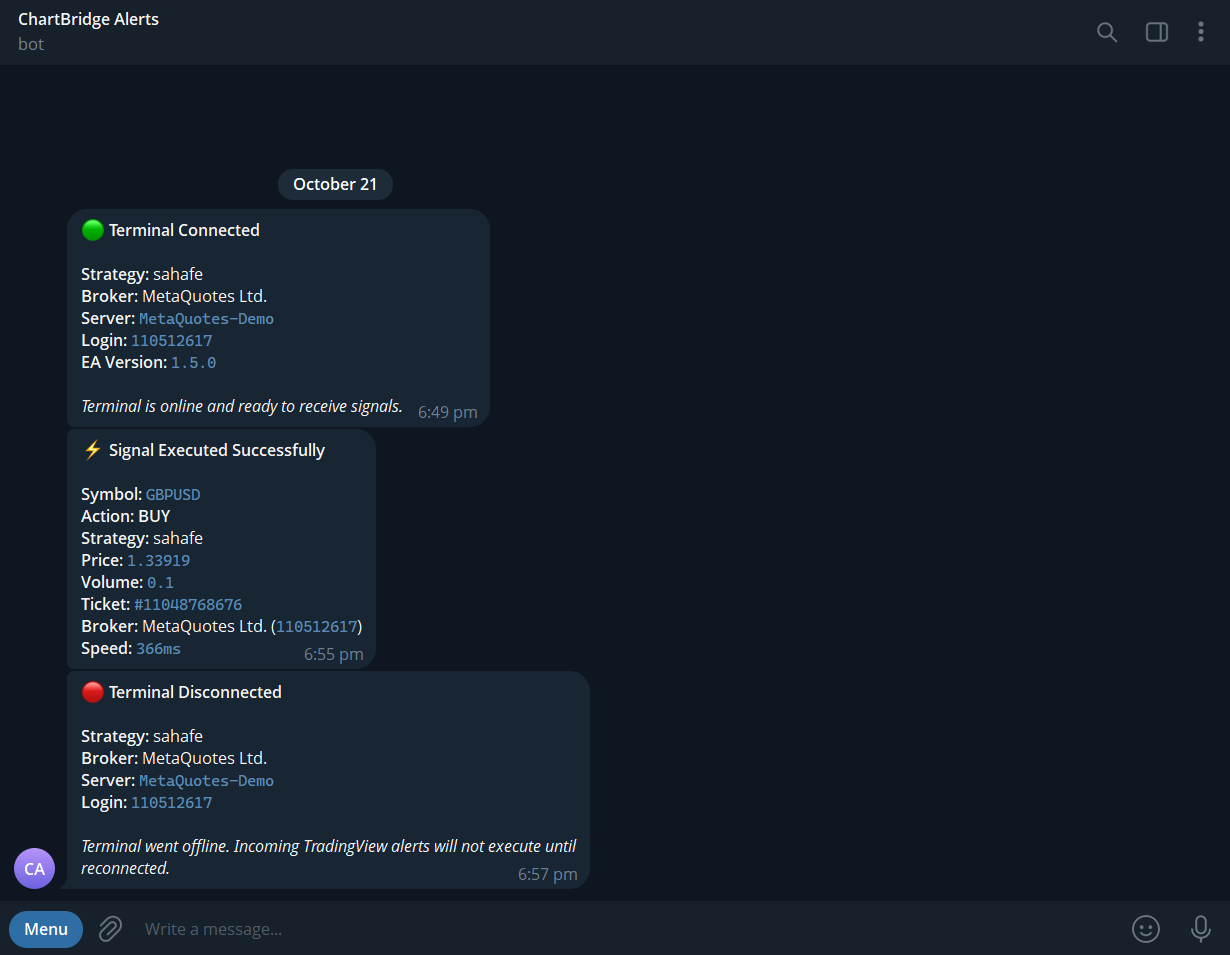
Once enabled, ChartBridge delivers formatted alerts directly into your Telegram chat:
Trade Execution Alert Shows the traded symbol, action (buy/sell), fill price, lot size, ticket number, and execution speed.
Terminal Connection Heartbeat Shows when your MetaTrader 5 terminal connects or disconnects, along with your strategy name and broker server.
How to disconnect Telegram
If you want to unlink your Telegram account:
- Go to Notifications in the portal.
- On the Telegram Bot card, click Unlink.
- Confirm disconnection. You will stop receiving alerts until you reconnect.