Connect TradingView and Test Your EA
This guide walks you through setting up TradingView with your MetaTrader 5 terminal, verifying your connection, and executing your first test order on a demo account.
Your MetaTrader 5 terminal should already be running with the ChartBridge EA attached, and your EA Token copied from the Strategies page.
What this test establishes
| Check | What it establishes |
|---|---|
| Connection check | Verifies that communication between ChartBridge and your MT5 EA is working properly. |
| TradingView demo order | Verifies that your TradingView alert, webhook URL, message syntax, and broker order execution all work together seamlessly. |
1. Check your connection status
Before placing a trade, make sure your MetaTrader 5 EA is actively connected:
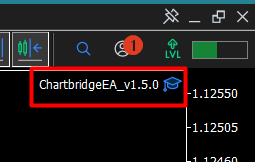
- Look at the top-right corner of your MT5 chart window. You should see ChartbridgeEA.
- Check the Experts tab at the bottom of MT5 (press Ctrl + T to open Toolbox, then select Experts). You should see
Connected to Chartbridge Server. - Open the ChartBridge Strategies page (https://staging.chartbridge.com/home/strategies). Your strategy will show an active connection status.
2. Find your exact broker symbol and prepare the message
Always test on a demo account first. A test alert will place a real order if connected to a live account.
Check your broker's exact symbol:
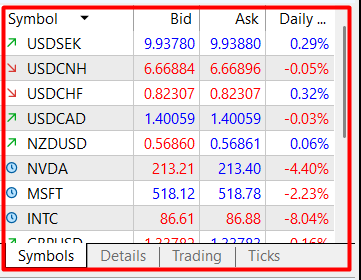
- Open MetaTrader 5 and look at Market Watch (press Ctrl + M).
- Check the exact symbol name used by your broker. Some brokers use standard names like EURUSD, while others add suffixes such as EURUSDm, EURUSD.pro, or EURUSD.r.
- Use the exact spelling and capitalization used by your broker.
Prepare your test message: Use the standard ChartBridge alert message syntax:
eaToken=75554788675;symbol=EURUSD;volume=0.1;command=buy
Replace:
- EAToken: Your actual EA Token copied from the Strategies page in the ChartBridge Portal.
- EURUSD: Your broker's exact symbol name.
- volume=0.01: The test volume size (0.01 lots).
3. Open TradingView's alert editor
- Open TradingView (https://www.tradingview.com) and open a price chart matching your test symbol (for example, EURUSD).
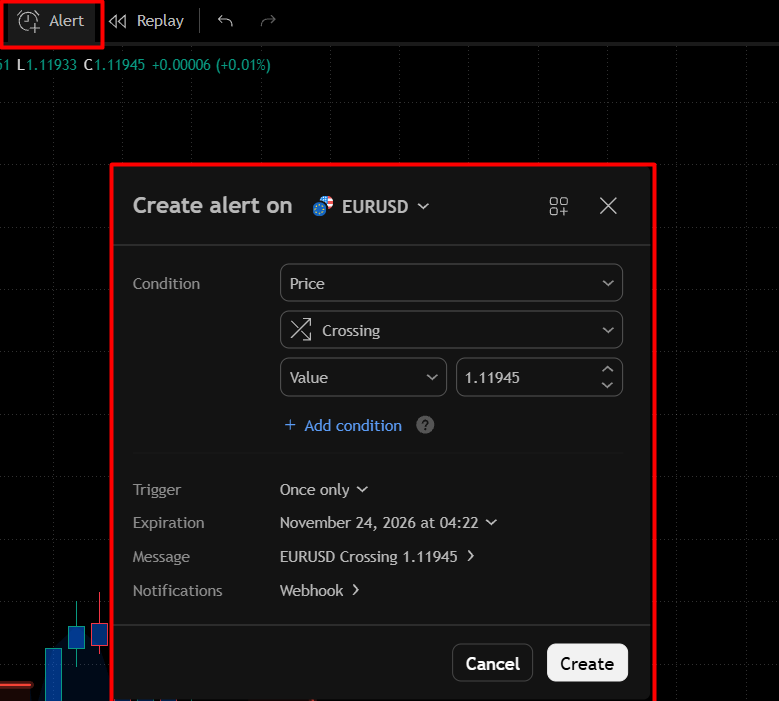
- Click the Alert clock icon in the top toolbar, or press Alt + A (Option + A on Mac).
4. Configure the temporary test alert
In the TradingView Create Alert window, configure the following :
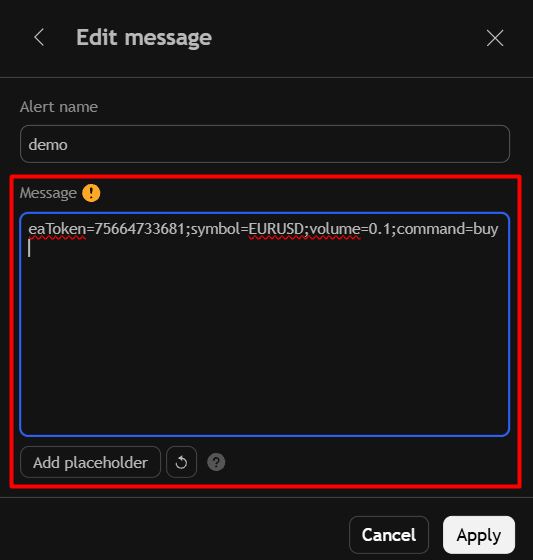
Message
- Alert name: Enter Demo trade test so you can easily identify it.
- Message: Delete any existing text and paste your prepared test message: EAToken,buy,EURUSD,volume=0.01
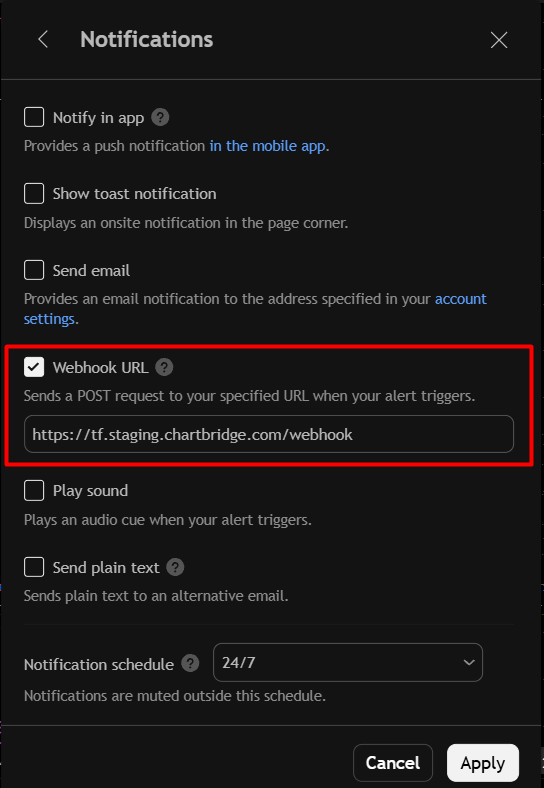
Notifications
- Check the Webhook URL box.
- In the Webhook URL field, paste the ChartBridge webhook address: https://tf.staging.chartbridge.com/webhook
Review and create
- Confirm that Trigger is set to Only Once, the message has your correct EA Token and broker symbol, and the Webhook URL is enabled.
- Click Create.
5. Check TradingView's Alerts log
- In TradingView, open the Alerts panel on the right sidebar and click the Log tab.
- Locate Demo trade test.
- Confirm that the alert triggered and shows the time and message sent. Once triggered, the alert status will show as Stopped / Triggered, which is normal for a one-time alert.
6. Confirm signal receipt in ChartBridge Portal
- Log in to ChartBridge and click Trade Logs in the left sidebar .
- Look for the new entry at the top of the table matching your test time.
- Verify that:
- Symbol matches your broker symbol. If Symbol Bridge mapping is enabled, you will see the mapped symbol.
- Command shows buy.
- Status displays success.

7. Confirm the trade in MetaTrader 5
- Switch to your MetaTrader 5 terminal.
- Open the Toolbox panel (press Ctrl + T) and select the Trade tab.
- Verify your open order:
- Symbol: matches the requested symbol (e.g. EURUSD). If Symbol Bridge mapping is enabled, you will see the mapped symbol.
- Type: buy.
- Volume: 0.01 lots.
- Select the Experts tab in the Toolbox to see the execution confirmation logged by ChartBridge EA.

8. Finish the test
- In MetaTrader 5, right-click the test position in the Trade tab and select Close Position (or click the X on the right).
- In TradingView, delete or disable the temporary Demo trade test alert from your Alerts list.
Your setup is now fully verified and ready for live indicator and strategy alerts.