ChartBridge Email Notifications
Receive automated trade execution reports, broker failure alerts, and terminal connectivity notices directly in your email inbox.
How Email Notifications Work
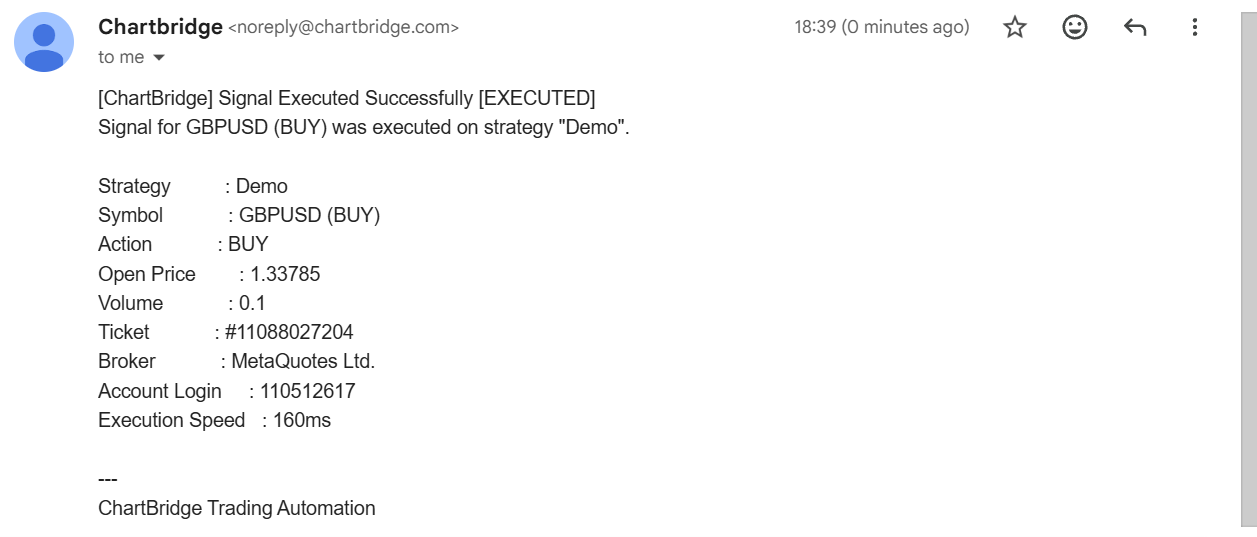
ChartBridge sends detailed, formatted email alerts to your primary verified account email whenever important trading or terminal events happen.
Unlike quick chat pings, email notifications provide complete execution receipt for your records, including order ticket numbers, open prices, execution speed in milliseconds.
Where to find Email Settings
- Log in to the ChartBridge Portal.
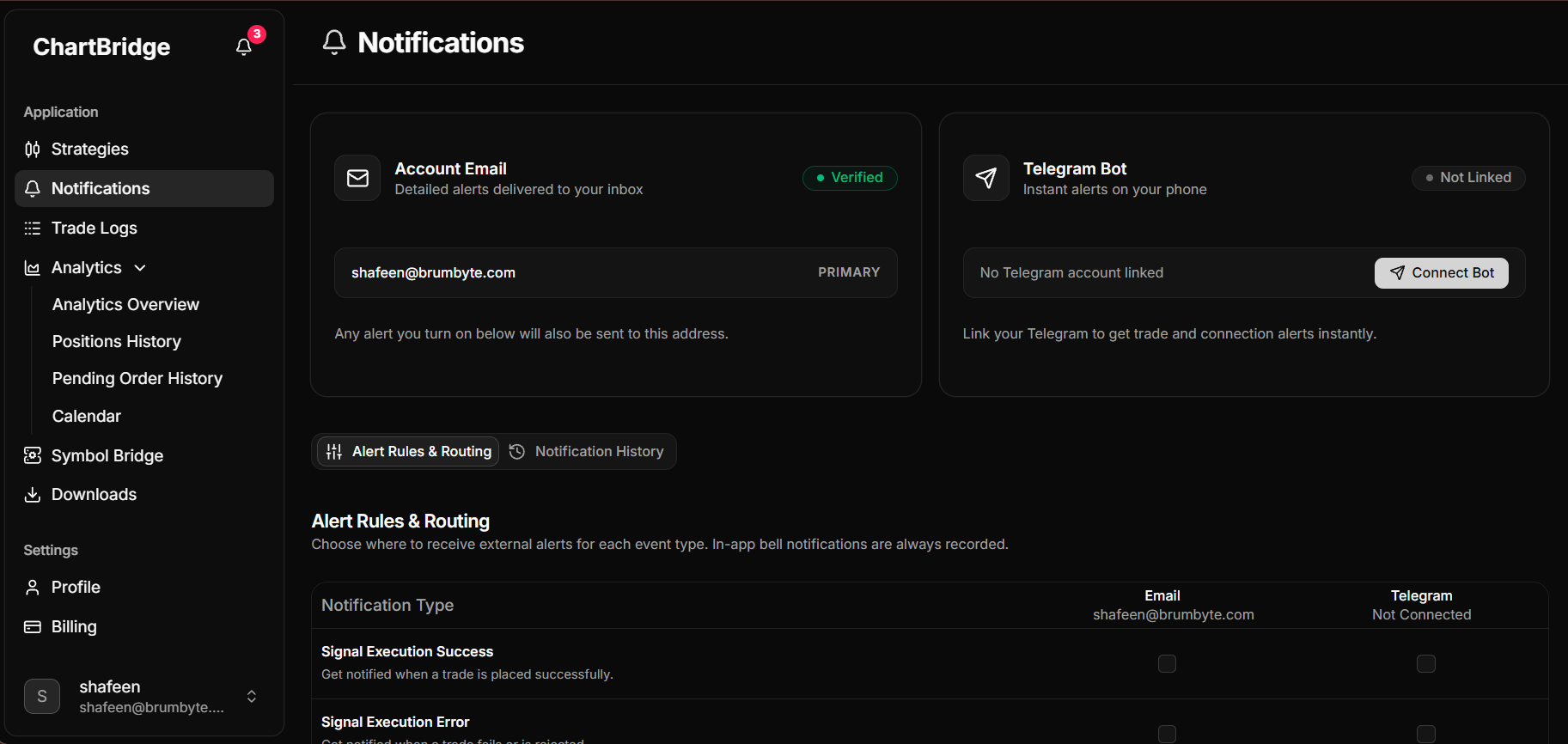
- In the left navigation sidebar, click Notifications (or go to https://staging.chartbridge.com/home/notifications).
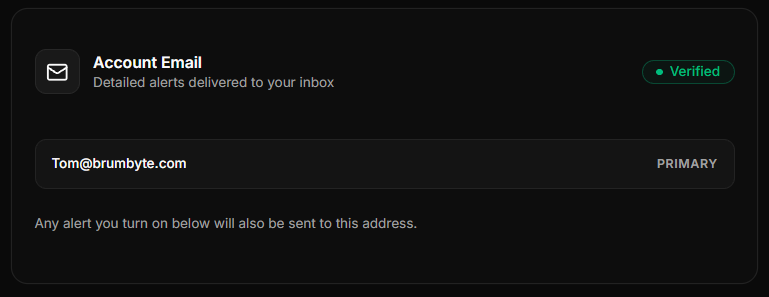
- The Account Email shown at the top shows your primary registered email address with a Verified badge. All email alerts are automatically routed to this address.
Configuring Email Alert Rules
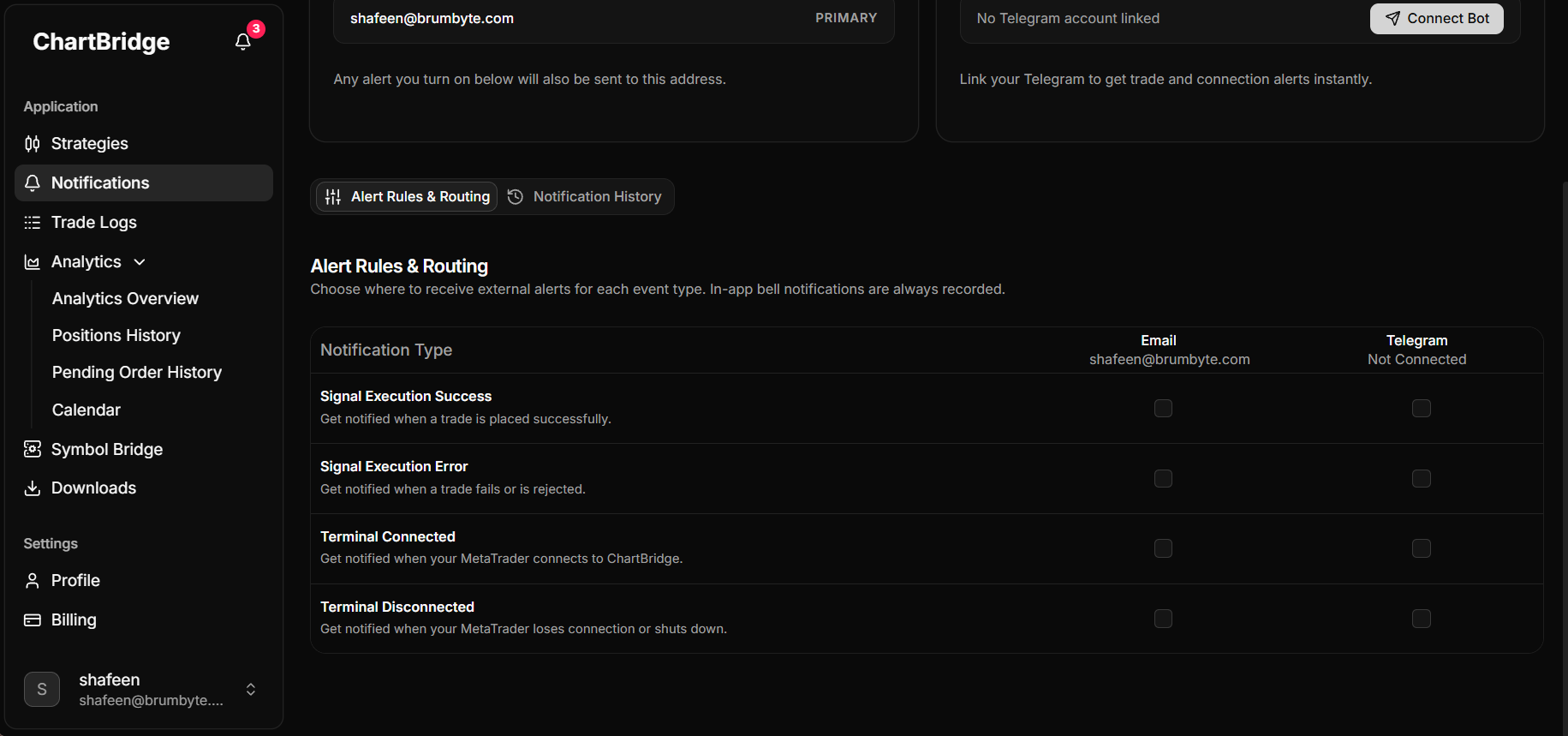
Below the notification channels, switch to the Alert Rules & Routing tab.
To receive an email for an event, check the box in the Email column next to that event. You can independently enable or disable any of the four notification types:
| Notification Type | When it is sent |
|---|---|
| Signal Execution Success | Sent immediately when an order executes successfully on MetaTrader 5. |
| Signal Execution Error | Sent when an incoming alert fails to execute or is rejected by your broker. |
| Terminal Connected | Sent when your MetaTrader 5 terminal connects to ChartBridge and goes online. |
| Terminal Disconnected | Sent when your MetaTrader 5 terminal loses connection or shuts down. |
Tracking Dispatched Emails
Every email sent by ChartBridge is recorded in your account logs:
- Click the Notification History tab on the Notifications page.
- View the event type, symbol, message details, and exact timestamp.
- Use the filter dropdown to view only Signal Executed, Signal Failed, Terminal Connected, or Terminal Disconnected events.