ChartBridge MetaTrader 5 EA Settings Reference
Understand ChartBridge MetaTrader 5 EA inputs, sizing, position behaviour, protection limits and connection settings.
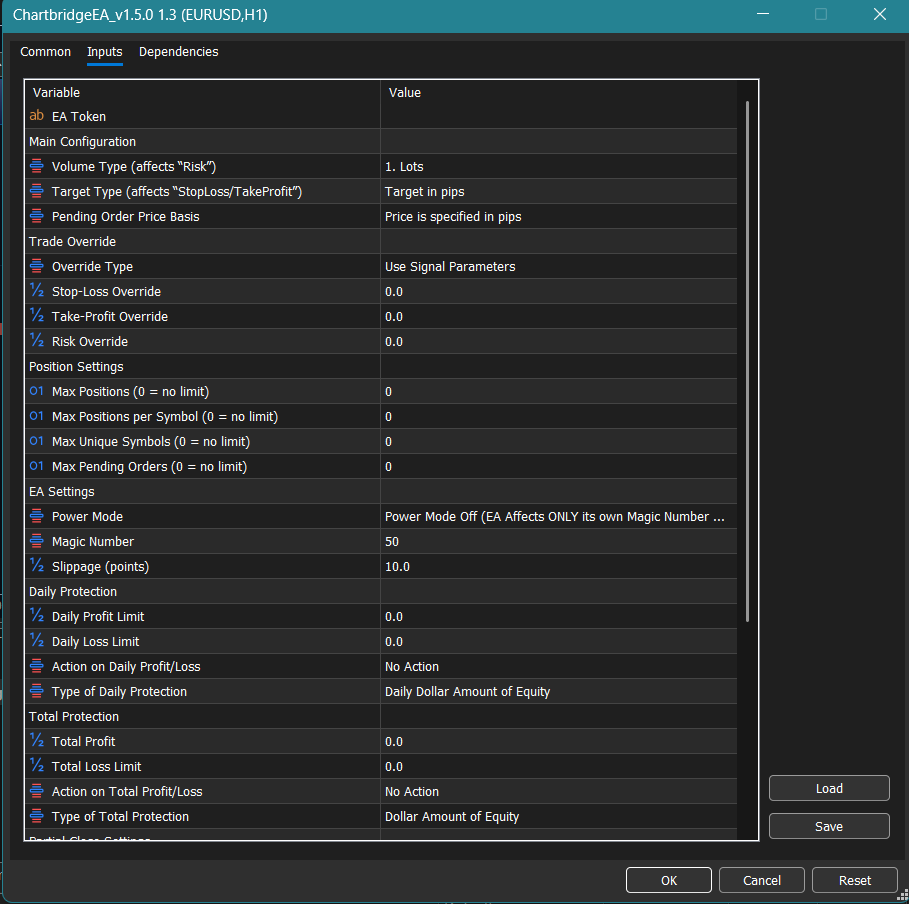
Use this reference to understand the self-hosted ChartBridge Expert Advisor (EA) inputs in MetaTrader 5. Select the chart with the EA attached, press F7, and open the Inputs tab.
You do not need to change every setting. Start with the setting that controls the behaviour you want, then test the change on a demo account.
What shapes the trade request
- Your TradingView Alert
- Supplies the command and message values such as your EA token, trading command, symbol, and parameters (volume, risk, stop loss, take profit, or pending entry price).
- The Receiving EA
- Applies its configured volume calculations, target types, trade overrides, position limits, and risk rules.
- Your Broker
- Accepts or rejects the resulting request under its trading conditions.
Find a setting
| I want to configure | Go to section |
|---|---|
| The connection token from ChartBridge | EA Token |
| How volume and risk values are interpreted | Main Configuration - Volume Type |
| How stop loss and take profit are measured | Main Configuration - Target Type |
| How pending order entry prices are calculated | Main Configuration - Pending Order Price Basis |
| Whether the alert or the EA supplies SL/TP/Risk | Trade Override |
| Limiting total open trades or symbols | Position Settings |
| Restricting the EA to its own trades or all | EA Settings - Power Mode |
| Identifying trades from this EA instance | EA Settings - Magic Number |
| Maximum allowable execution slippage | EA Settings - Slippage |
| Automated daily profit targets or loss limits | Daily Protection |
| Overall account equity protection across days | Total Protection |
| Scale-out and partial take profit behaviour | Partial Close Settings |
| Broker-specific symbol prefixes or suffixes | Prefix & Suffix Settings |
| Routing region, debug logging, or chart HUD | Other Settings & Region |
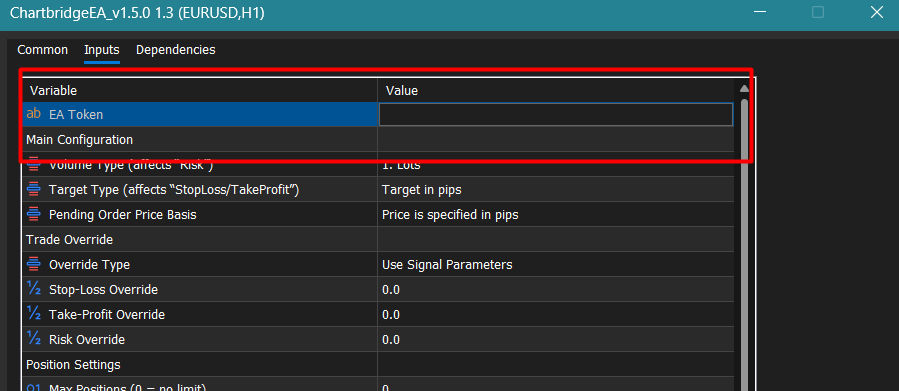
EA Token
Enter your ChartBridge EA Token obtained from the ChartBridge Strategies .
the EA uses it to connect to PineConnector. Your alert messages must use the intended EA Token as well.
Do not enter your broker account login or password in this field. Keep your token private. If multiple MT5 terminals or charts share the same EA Token, alerts sent to that token can reach all connected instances.
Main Configuration
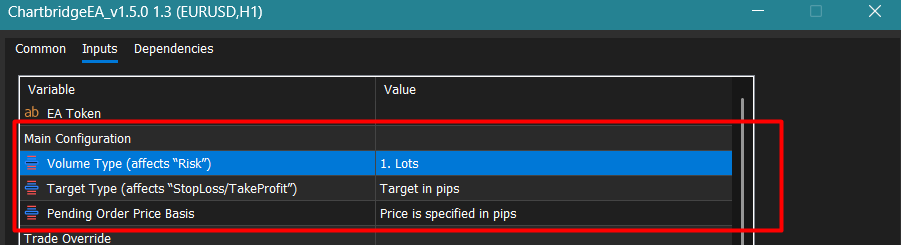
These inputs define how numerical values inside your incoming alert messages are interpreted by the EA. A number such as 1 does not have an inherent unit; its meaning depends entirely on these settings.
Volume Type (affects "Risk")
Controls how the volume or risk parameter in your alert message is calculated to determine lot size.
- Lots (
VOLUME_LOTS)- Direct lot size.
- Example:
risk=1orvolume=1opens exactly 1.00 lot. - Stop loss needed for lot calculation: No.
- Dollar Amount, SL needed (
VOLUME_DOLLAR_AMOUNT)- Cash loss amount in your account currency. The EA calculates lot size dynamically based on the stop loss distance.
- Example: On a USD account with a 20-pip stop loss,
risk=100calculates volume so that reaching the stop loss incurs approximately a 100 USD loss. - Stop loss needed for lot calculation: Yes.
- Percentage of Margin, SL needed (
VOLUME_PERCENT_BALANCE_MARGIN)- Sizes the trade using a percentage of the required margin relative to account balance.
- Stop loss needed for lot calculation: Yes.
- Percentage of Balance, SL needed (
VOLUME_PERCENT_BALANCE_LOSS)- Calculates lot size so that if the stop loss is hit, the loss equals a fixed percentage of your account balance.
- Example: On a 10,000 USD balance,
risk=1risks 1 percent (100 USD). A tighter stop produces a larger lot size, while a wider stop produces a smaller lot size. - Stop loss needed for lot calculation: Yes.
- Percentage of Equity, SL needed (
VOLUME_PERCENT_EQUITY_LOSS)- Calculates lot size so that if the stop loss is hit, the loss equals a fixed percentage of your current account equity. This dynamically adapts to open floating profits or losses.
- Example: With 12,000 USD equity,
risk=2risks 2 percent (240 USD) based on stop loss distance. - Stop loss needed for lot calculation: Yes.

Target Type (affects "StopLoss/TakeProfit")
Controls how the stopLoss and takeProfit values in your alert message are interpreted.
- Target in pips (
TARGET_PIPS)- Stop loss and take profit values are measured as pip distance away from the entry price.
- Example: For a EURUSD buy at 1.08500,
stopLoss=20places the stop loss 20 pips below at 1.08300, andtakeProfit=40places the take profit 40 pips above at 1.08900.
- Target as a specific price (
TARGET_PRICE)- Stop loss and take profit values represent exact absolute price levels.
- Example:
stopLoss=1.08250andtakeProfit=1.09100requests those exact price levels. - Note: Broker prices can differ slightly from TradingView charts. Ensure your target price respects the broker's minimum stop level distance from the current market price.
- Target as a percentage of the current price (
TARGET_PERCENTAGE)- Stop loss and take profit values are measured as a percentage offset from the entry price.
- Example: For a Bitcoin buy at 60,000 USD,
sl=1places the stop loss 1 percent below at 59,400 USD.

Pending Order Price Basis
Controls how the pending entry parameter in limit and stop order alerts (such as buylimit, selllimit, buystop, sellstop) is calculated.
What is a Pip ?
Pip is 2nd digit from right to left after decimal point.
| Decimals on the price | Example price | 1 pip |
|---|---|---|
| 5 | 1.10000 | 0.0001 |
| 3 (JPY pairs) | 150.000 | 0.01 |
| 2 (often gold) | 2000.00 | 0.10 |
- Price is specified in pips (
PIPS_FROM_MARKET)- Distance in pips away from the market price at the moment the EA processes the alert.
- Example: With EURUSD at 1.08500, a
buylimitalert withprice=10places a buy limit order 10 pips below the market at 1.08400.
- Price is a specific value (
SPECIFIED_PRICE)- Exact entry price level sent from TradingView.
- Example:
price=1.08400requests a pending order placed exactly at 1.08400.
- Price is a percentage away from the current market price (
PERCENTAGE_FROM_MARKET)- Percentage distance away from current market price.
- Example: For an instrument trading at 2,000 USD, a
buylimitalert withpending=1requests an entry 1 percent below at 1,980 USD.

Trade Override
Allows you to enforce fixed risk, stop loss, and take profit values directly from the EA, overriding or supplementing incoming alert messages.

Override Type
Choose whether the trade parameters come from the alert, the EA, or a combination of both.
- Use Signal Parameters (
USE_SIGNAL)- Default mode. The EA reads stop loss, take profit, and volume directly from the incoming alert message.
- Use EA Parameters (
USE_EA)- The EA ignores the alert's stop loss, take profit, and volume values and instead applies the fixed values configured below.
- Use SL/TP from EA, Risk From Signal (
USE_EA_SLTP_SIGNAL_RISK)- The EA enforces its own Stop-Loss Override and Take-Profit Override values, while accepting the volume from the alert.
- Use Risk from EA, SL/TP From Signal (
USE_EA_RISK_SIGNAL_SLTP)- The EA enforces its own Risk Override value, while accepting the stop loss and take profit sent in the alert.
Override Input Values
- Stop-Loss Override — fixed stop loss value used when the EA stop loss is enforced.
- Take-Profit Override — fixed take profit value used when the EA take profit is enforced.
- Risk Override — fixed volume value used when the EA risk is enforced.

Position Settings
Controls exposure and prevents over-trading by enforcing hard position limits on the terminal.

- Max Positions (0 = no limit) — The maximum total open market positions allowed simultaneously across all symbols managed by the EA. Set to 0 to disable this limit. If this limit is reached, incoming entry signals are rejected until existing positions close.
- Max Positions per Symbol (0 = no limit) — The maximum open market positions allowed on any single symbol or currency pair. Set to 0 to disable.
- Max Unique Symbols (0 = no limit) — Limits how many distinct symbols can have open positions at the same time.
- Example: If set to 1 and you currently have an open EURUSD trade, any new entry signal for GBPUSD or USDJPY will be blocked until the EURUSD position is closed.
- Max Pending Orders (0 = no limit) — The maximum number of active pending orders (buy limit, sell limit, buy stop, sell stop) permitted on the account. Set to 0 for no limit.

EA Settings
Controls which trades this EA instance manages (Power Mode and Magic Number) and how far the price may move while an order is being filled (Slippage).

Power Mode
Controls whether the EA affects only trades it opened or manages all trades on the MetaTrader 5 terminal.
- Power Mode Off (
POWER_MODE_OFF)- Default and recommended setting. The EA only monitors, modifies, and closes trades opened with its own Magic Number. Manual trades and trades opened by other EAs are completely ignored.
- Power Mode On (
POWER_MODE_ON)- The EA has global control over the account. Commands such as
closeall,closebuy, orclosesellwill close matching open positions across the entire terminal, including manual trades and trades opened by other robots.
- The EA has global control over the account. Commands such as

Magic Number
A unique numerical identifier (USE_50 through USE_60, default 50) stamped onto every order opened by this EA instance.
Use different Magic Numbers on different charts when you want to run multiple independent strategies or currency pairs without trade interference. When Power Mode is Off, each EA instance only manages trades matching its assigned Magic Number.
Slippage (points)
The maximum acceptable slippage in points (default 10) between the requested price and the broker execution price. If market price moves beyond this point tolerance before execution, the order is rejected to protect against bad fills.

Daily Protection
Automated risk controls that monitor your account on a daily basis. When a profit target or loss limit is reached, the EA runs the configured protection action.

- Daily Profit Limit — Daily profit target threshold. Set to 0 to disable.
- Daily Loss Limit — Daily loss drawdown threshold. Set to 0 to disable.
Type of Daily Protection
- % of Daily Balance
- Limits are calculated as a percentage of the day's starting balance.
- Example: On a 10,000 USD balance, setting Daily Loss Limit to 5 sets the loss trigger at 5 percent (500 USD), triggering when balance drops to 9,500 USD.
- Daily Dollar Amount of Equity
- Limits are calculated as cash dollar values relative to starting equity.
- Example: Setting Daily Loss Limit to 500 triggers when account equity drops by 500 USD.
Action on Daily Profit/Loss
Select what happens when daily profit or loss limits are reached:
- No Action — No action taken. Trigger is logged only.
- Close All Pending/Market Orders — Closes all open market positions and deletes pending orders; EA continues running.
- Pause EA for the Day — Pauses the EA for the remainder of the day. Automatically resumes at the start of the next trading day.
- Stop EA Permanenetly — Stops the EA permanently. Requires manual restart.
- Close all Positions And Pause EA for the Day — Closes all open trades, deletes pending orders, and pauses the EA until the next day.
- Close all Positions and Stop EA Permanently — Closes all open trades, deletes pending orders, and stops the EA permanently.

Total Protection
Account protection across all trading days, guarding against a large total drawdown or locking in a major profit target.

- Total Profit — Total profit threshold across the account life. Set to 0 to disable.
- Total Loss Limit — Total cumulative loss threshold across the account life. Set to 0 to disable.
Type of Total Protection
- % of Balance
- Threshold is calculated as a percentage of initial account balance.
- Dollar Amount of Equity
- Threshold is calculated as a direct cash dollar equity value.
Action on Total Profit/Loss
Select what happens when total profit or loss limits are reached:
- No Action — No action taken. Trigger is logged only.
- Close All — Closes all open market positions and deletes pending orders.
- Pause EA for the Day — Pauses the EA for the current day.
- Stop EA Permanenetly — Stops the EA permanently until manually reset.
- Close all Positions And Pause EA for the Day — Closes all open positions and pauses the EA for the day.
- Close all Positions and Stop EA Permanently — Closes all open positions and stops the EA permanently.

Partial Close Settings
Controls how much of each position is closed when the EA receives a partial close command (closelongpct or closeshortpct).

Partial Close Percentage Override
- Partial Close Percentage EA Setting is Used (
USE_EA_PCT)- The EA always closes the fixed percentage configured below in the Partial Close Position Percentage setting.
- volume(1-100%) from Signal is used as % (
USE_SIGNAL_PCT)- The
volumeparameter in the TradingView alert is treated as the close percentage. - Example: An alert with
volume=50will close 50 percent of the open position.
- The
Partial Close Position Percentage
Specifies the fraction of the position to close when EA setting is active:
- 10%
- 20%
- 25%
- 34% (approximately one third)
- 50% (half of the position)
Partial Close Position Retry Count
Specifies how many times (from 0 to 5 retries) the EA will re-attempt closing a partial position if the broker rejects the request or returns a requote.

Prefix & Suffix Settings
Makes symbol names in TradingView alerts match the exact symbol names used by your MetaTrader 5 broker.

- EA Symbol prefix — text added to the start of incoming symbol names
- Example: If your broker lists symbols as
m.EURUSDorpro_EURUSD, set EA Symbol prefix tom.orpro_.
- Example: If your broker lists symbols as
- EA Symbol suffix — text added to the end of incoming symbol names
- Example: If your broker lists symbols as
EURUSD.r,EURUSDm, orEURUSDpro, set EA Symbol suffix to.r,m, orpro.
- Example: If your broker lists symbols as

Other Settings & Region
Configures the connection region, debugging logs, and the on-chart settings display.

Region (Datacenter Selection)
Connects your EA directly to the closest ChartBridge server for the lowest possible signal latency:
- Auto (Best Latency) — Automatically checks all available ChartBridge regional servers and connects to the fastest one. Recommended default.
- us-west-2 — Connects to the US West regional server (
wss://ws.us-west-2.staging.chartbridge.com). - eu-west-1 — Connects to the EU West regional server (
wss://ws.eu-west-1.staging.chartbridge.com). - Local — Connects to a local endpoint (
ws://localhost:9001) for development and offline testing.
Enable debug logs
When set to true, prints detailed connection messages, raw alert payloads, and order execution timestamps into the MT5 Experts log tab. Set to false for normal daily trading.
Show EA settings on chart
When set to true, renders a clean visual dashboard directly on your MetaTrader 5 chart displaying connection status, current EA settings, and daily profit/loss metrics.

