Follow this guide when you run MetaTrader 5 on a Windows machine or Windows VPS.
Before you begin
- Install your broker’s MetaTrader 5 terminal and sign in to the intended account. Use demo for your first test.
- Have access to Strategies and an available connection.
- Use a Windows environment that supports the ChartBridge EA and its DLL. The published compatibility guide lists Windows 10/11 and Windows Server 2016/2019/2022; use an operating system maintained by you or your VPS provider.
- For a Mac, use a Windows VPS to run the MT5 terminal and DLL workflow.
1. Download the MT5 EA
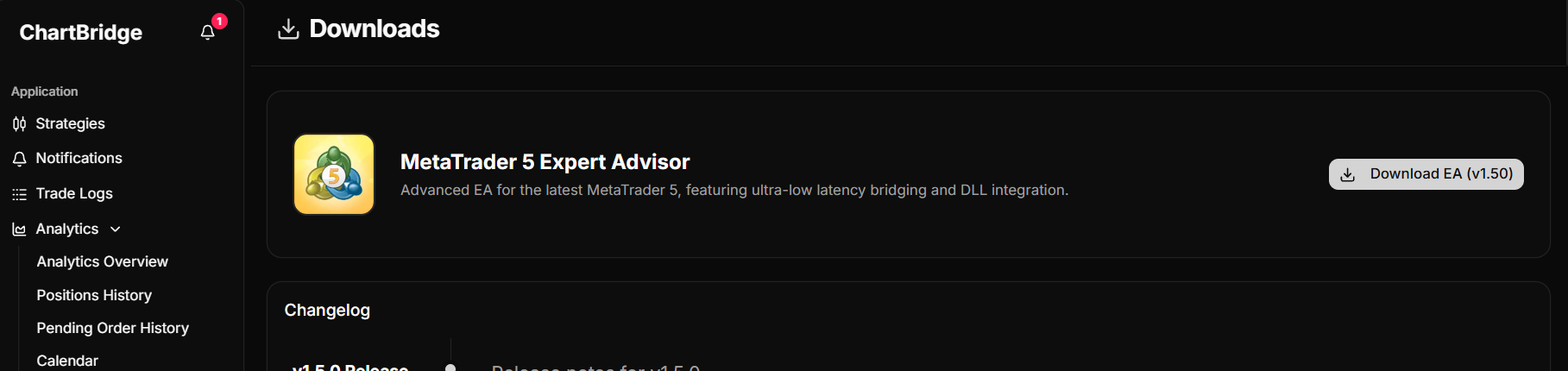
Open Downloads in Portal. Find MetaTrader 5 Expert Advisor and download the current version.
Keep the ZIP file available for further steps. Use the official ChartBridge package rather than files from an unrelated indicator or a third-party download.
2. Open this terminal’s Experts folder
In the MT5 terminal you are setting up, select:
- File → Open Data Folder → MQL5 → Experts
The Experts folder holds Expert Advisors for that terminal. Opening it from MT5 helps you avoid putting the files into a different installation’s data folder.
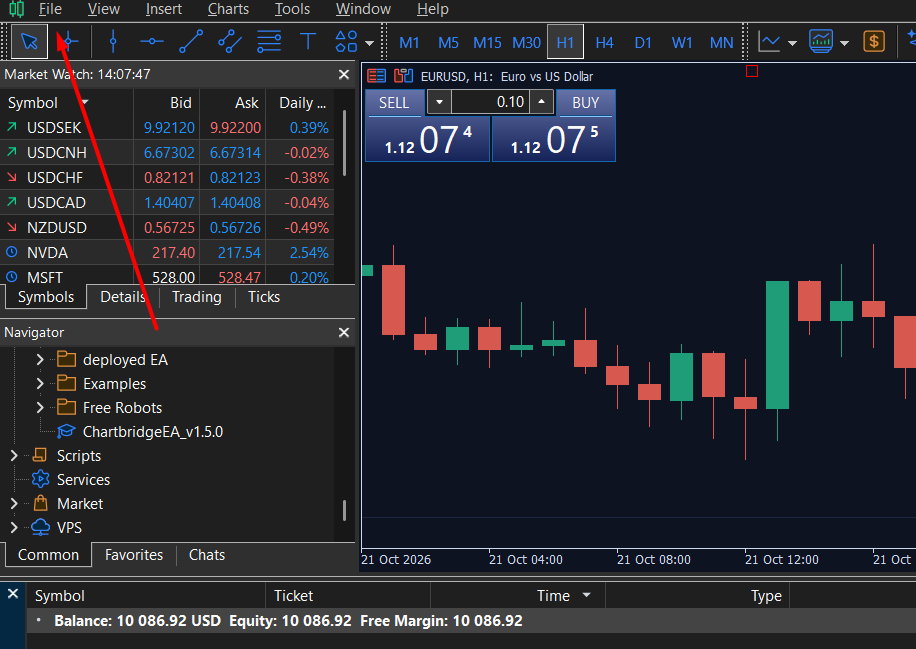
- Open the MQL5 folder
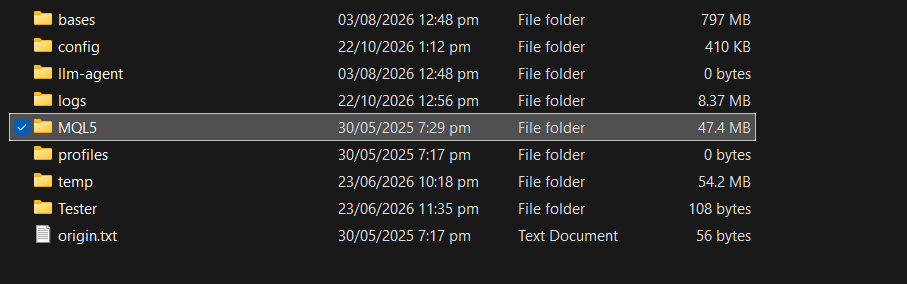
- Open the experts folder
3. Extract the package into Experts
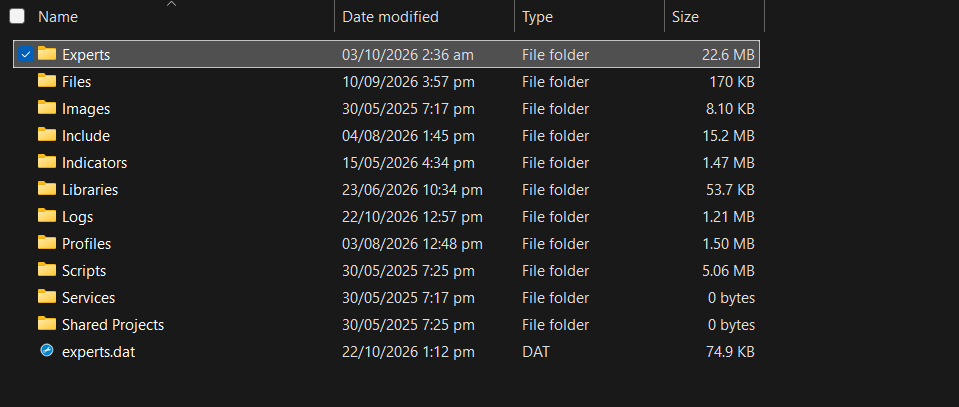
Extract the downloaded ZIP’s contents directly into MQL5 → Experts. The package contains two files:
ChartbridgeEA_v1.5.0.ex5Chartbridge.Metatrader5.dll
Keep the names and extensions supplied in the downloaded package. Both files should be in Experts itself, rather than inside another ZIP or an extra nested folder.
Check: you can see both extracted files in the folder before returning to MT5.

4. Allow algorithmic trading and DLL imports
In MetaTrader, open:
- Tools → Options (or
Ctrl + O) → Expert Advisors
Tick Allow algorithmic trading and Allow DLL imports, then select OK.
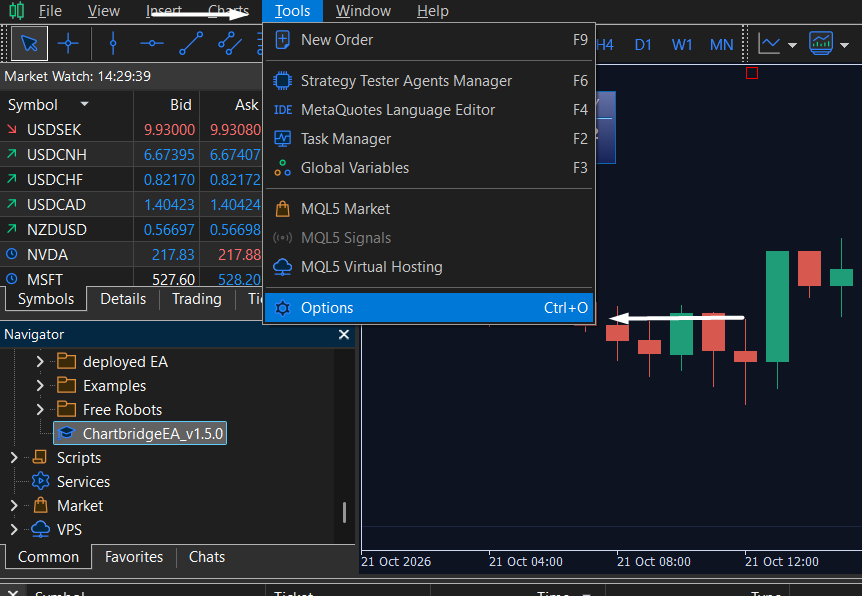
- In options
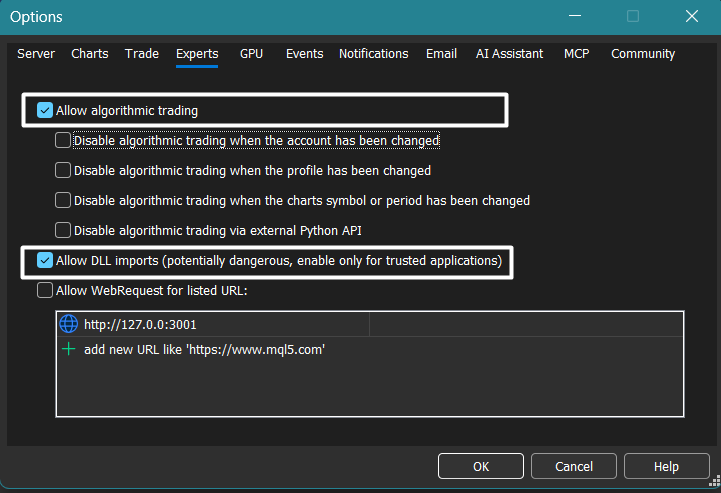
No WebRequest URL is required here: The MT5 installation does not require adding a URL to MetaTrader’s WebRequest list. The webhook URL belongs in your TradingView alert settings later.
5. Enable Algo Trading on the toolbar
Check the Algo Trading button at the top of MT5. Enable it if it is off; the button will display an active green indicator.
- When Algo Trading is OFF

- When Algo Trading is ON

The toolbar control must be enabled as well as the EA's own permission.
6. Attach the EA to one chart
Open Navigator with
Ctrl + N.Right-click Expert Advisors and select Refresh.
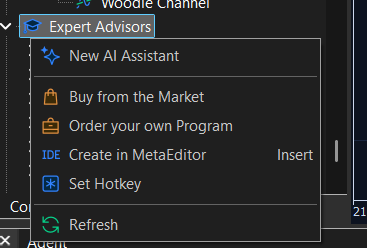
- Find
ChartbridgeEA_v1.5.0. - Right-click it and select Attach to Chart on the chart you want to use.
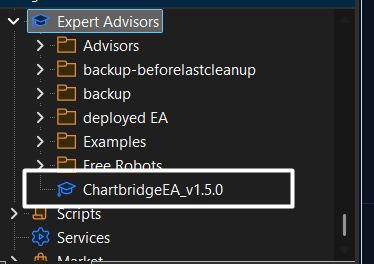
One EA is enough for the normal single-account setup: You do not need to attach it to every symbol’s chart. The connected EA processes symbols available in that account’s Symbol List.
7. Check the EA’s own permissions
In the properties window that opens:
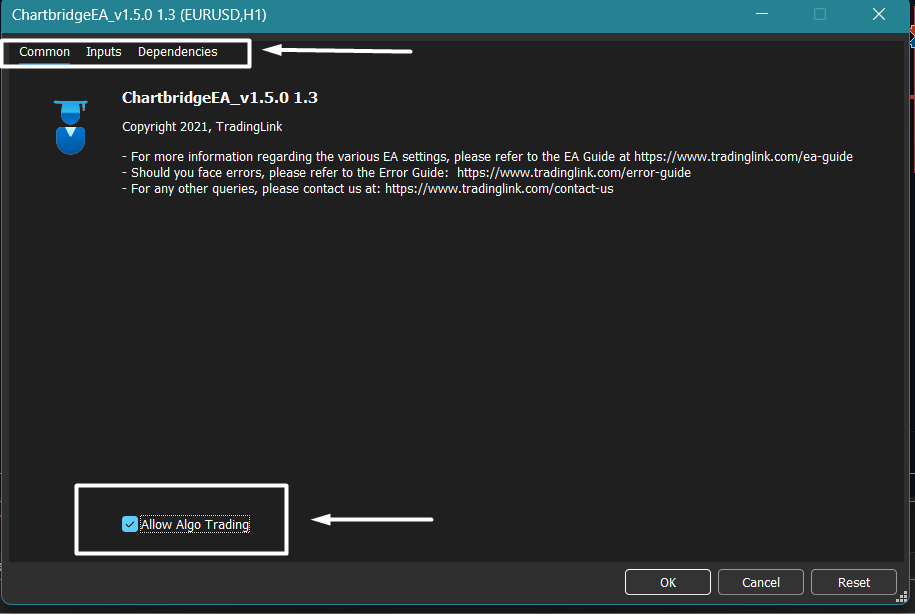
- On Common, tick Allow Algo Trading.
- On Dependencies, tick Allow DLL imports.
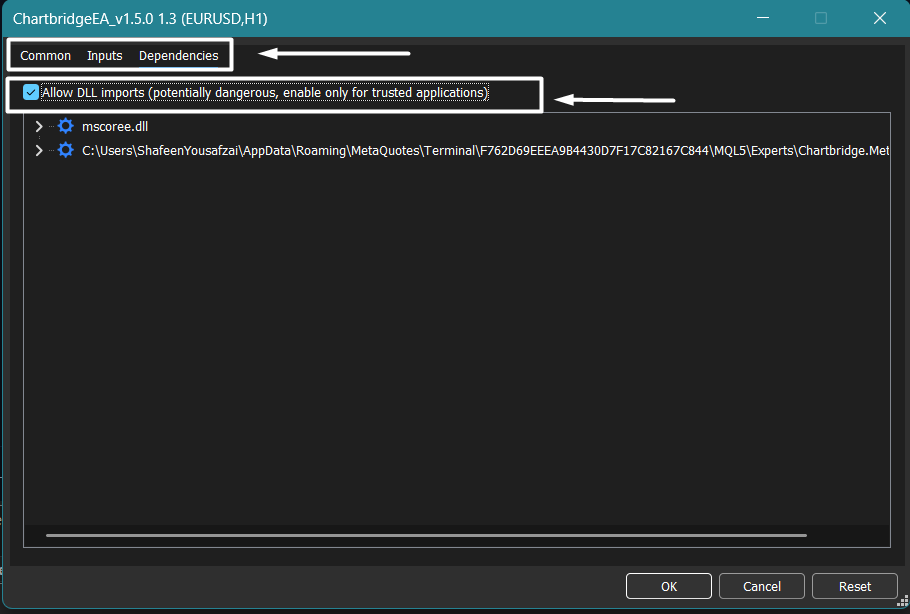
Both the EA-level permissions and the terminal-level setting must be enabled.
8. Enter your EA Token
Open Strategies in Chartbridge and copy the EA Token for this connection. In the EA properties window, select Inputs and paste it into the EA Token field. Select OK to connect.

- Paste the token here
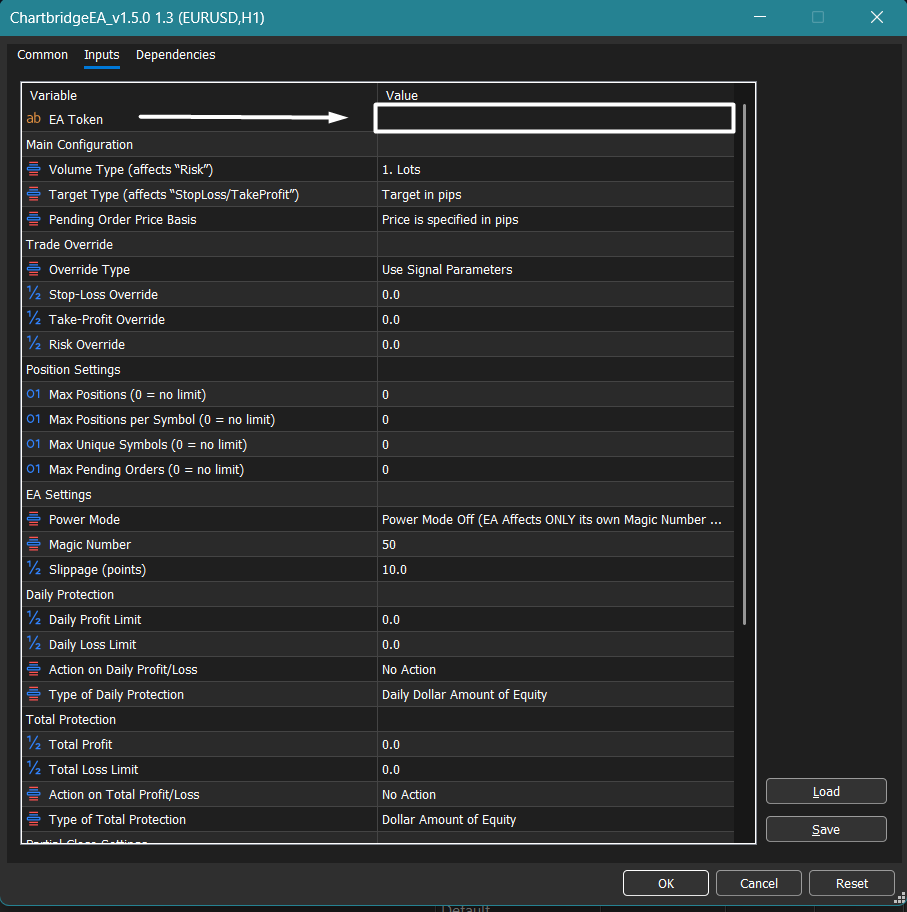
Important: Use the EA Token for the intended account: This field is not your broker login. If multiple accounts use the same EA Token, an alert to that token can reach all of them. Confirm the intended allocation before enabling live alerts.
9. Confirm the connection in Portal
Return to Strategies and locate the trading account. Compare its account number and broker with the terminal you installed.

Installation is complete when the intended account is connected through the EA.
If the EA does not connect
| What you see | First check |
|---|---|
| EA missing from Navigator | Extracted files are directly in this terminal’s MQL5 → Experts, then right-click and refresh Expert Advisors. |
| Trading or DLL permission error | Check both terminal permissions (Tools → Options → Expert Advisors) and the EA’s Common/Dependencies tabs. |
| Wrong account in Portal | Compare the terminal’s broker login and the EA Token entered in Inputs. |
| Connection remains absent | Read the full message in MT5’s Experts log tab (Ctrl + T → Experts). |
Do not keep sending test alerts while the destination or connection is unclear.